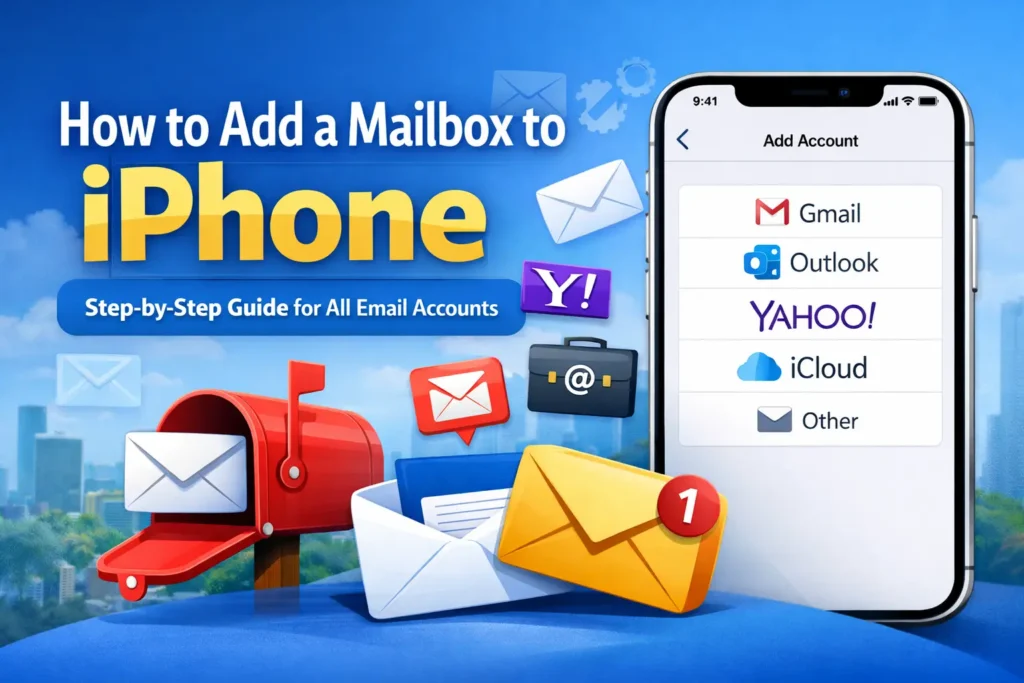
Adding a mailbox to iPhone is a basic but essential task for both personal and professional users. Whether you use Gmail, Outlook, iCloud, or a business email, setting up email on your iPhone ensures you never miss important messages.
This guide explains how to add a mailbox to iPhone using simple steps, making it easy even for beginners.
Why Adding a Mailbox to iPhone Is Important
Email remains a core communication tool, especially for businesses and professionals. When your mailbox is properly configured on iPhone, you can manage messages, attachments, and notifications efficiently.
Modern smartphones rely heavily on email integration, which is part of how technology is changing businesses and daily workflows.
Types of Mailboxes You Can Add on iPhone
Before setting up, it helps to know what type of email you’re using:
- Gmail, Outlook, Yahoo, iCloud
- Business or custom domain email
- Exchange email (corporate accounts)
iPhone supports all major email providers through its built-in Mail app.
How to Add a Mailbox to iPhone Using Mail App
Add Gmail, Outlook, Yahoo, or iCloud
- Open Settings on your iPhone
- Scroll and tap Mail
- Tap Accounts → Add Account
- Choose your email provider
- Sign in using your email and password
- Enable Mail and tap Save
Your mailbox will appear instantly in the Mail app.
Apple officially recommends this method for most users.
How to Add a Business Email Mailbox on iPhone
If you use a professional email address (like info@company.com), follow these steps:
- Go to Settings → Mail → Accounts
- Tap Add Account → Other
- Select Add Mail Account
- Enter name, email, password, and description
- Choose IMAP (recommended)
IMAP keeps your email synced across devices, which is useful when using multiple productivity tools.
Mail Server Settings You Need
To complete setup, you’ll need mail server details from your email provider:
Incoming Mail Server
- Host name
- Username
- Password
Outgoing Mail Server
- Host name
- Username
- Password
Most hosting providers list these details in their help center.
Google also recommends IMAP for better email synchronization.
How to Check If Mailbox Is Working Properly
After setup:
- Open the Mail app
- Send a test email
- Check if incoming messages sync
If emails don’t update, go to Settings → Mail → Fetch New Data and enable Push.
Reliable email syncing supports smoother digital operations, which aligns with latest technology trends shaping the future.
Common Problems When Adding a Mailbox to iPhone
Incorrect Password
Re-enter credentials carefully. Password errors are the most common issue.
Mail Not Syncing
Check fetch settings and ensure background app refresh is enabled.
Server Error
Confirm server details with your email hosting provider.
Microsoft recommends keeping mail settings updated to avoid sync issues.
https://support.microsoft.com/en-us/mail
How to Add Multiple Mailboxes on iPhone
You can add more than one mailbox:
- Repeat the same steps for each email
- iPhone allows switching between mailboxes easily
This is especially helpful for users managing work and personal emails together, similar to how business productivity tools improve efficiency.
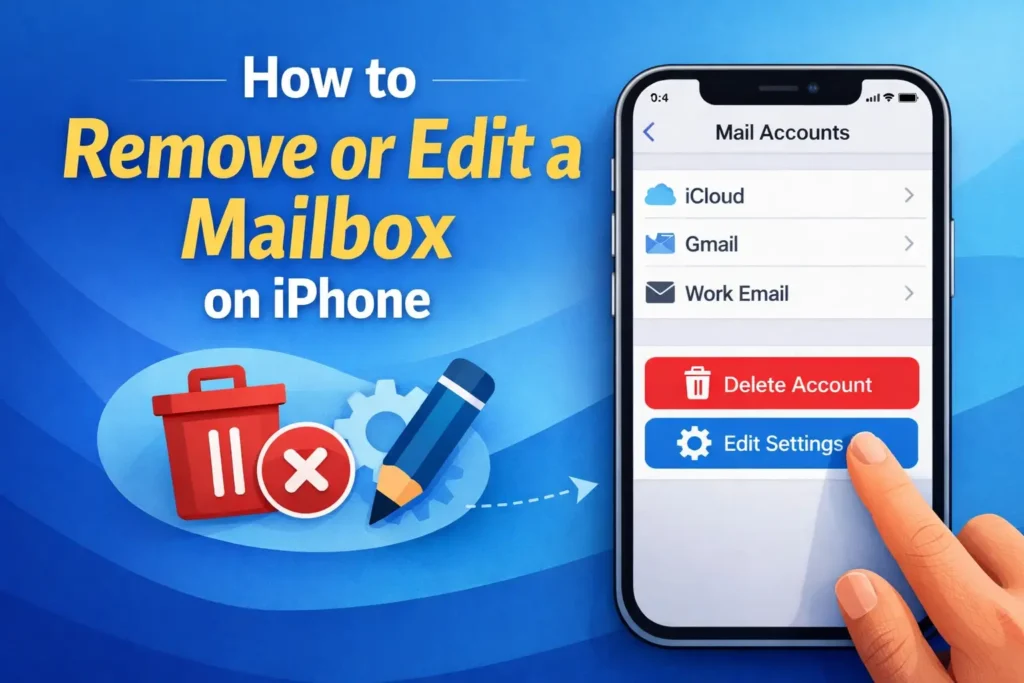
How to Remove or Edit a Mailbox on iPhone
- Go to Settings → Mail → Accounts
- Tap the mailbox
- Select Delete Account or update settings
This is useful when changing email providers or troubleshooting issues.
Apple provides detailed guidance on managing email accounts.
Security Tips for iPhone Mailboxes
- Use strong passwords
- Enable two-factor authentication
- Avoid public Wi-Fi for email login
- Keep iOS updated
Cybersecurity experts stress that email security is essential as digital communication grows.
Final Thoughts
Learning how to add a mailbox to iPhone is a simple but powerful step toward better communication and productivity. Whether for personal use or business needs, proper email setup ensures seamless access anytime, anywhere.
As smartphones continue to evolve, email integration remains a core feature shaping how people work and communicate.